9 Good CD And DVD Burning Tools For Ubuntu/Linux

There is no dearth of good CD/DVD burning tools for Ubuntu. Brasero Disc Burner comes as default in Ubuntu and it is a good enough tool with almost all functionalities you expect from a basic CD/DVD burning application. But what really are the alternatives. Here is a quick listing of very good CD/DVD burning applications available for Linux(in no particular order). Read on.

K3B – KDE Burning Tool

top CD burn tools for Linux

K3B has been my favorite CD/DVD burning tool ever since I started using Ubuntu some 4 years ago. K3B is a Qt based application and it might look a bit out of place in Ubuntu GNOME desktop. But from a functionality point of view K3B is far ahead of all its competitors.

GnomeBaker Burning Tool

GnomeBaker Burning Tool

GnomeBaker is a free and open source CD/DVD authoring application for Linux. It is based on GNOME desktop environment. GnomeBaker comes equipped with functionalities like: Drag and drop to create data CDs (including drag and drop to and from the Nautilus file manager), Create audio CDs from existing WAV, MP3, FLAC, and Ogg files etc.
Brasero Disc Burner

brasero ubuntu

If you are an Ubuntu user, you don’t need any introduction to Brasero Disc Burner since it comes as a default application in Ubuntu. Supports features like on-the-fly burning, multi-session, on-the-fly conversion of music playlists in all formats supported by GStreamer and so on. Brasero is my second favorite Burn tool available for Linux.
Xfburn for Linux

Xfburn for Linux

Xfburn is a tool to help burning CDs and DVDs. As the name indicates, Xfburn is better integrated with Xfce desktop though it can be used in any Linux desktop environment.
Nero for Windows, Linux

Nero for Windows, Linux

Yes, Nero indeed has a Linux version of its popular CD/DVD burning application. Nero Linux 4 costs US $19.99 and there is a demo version also, available for free download.
ImgBurn for Windows, Linux(under Wine)

top burn applications for Linux

Before getting excited, let me make it clear. ImgBurn is not an open source application and there is no official package for Linux as well. But ImgBurn is among the few applications which runs neatly under Wine and that is exactly why it is included in this official listing of Wine supported applications.

SimpleBurn for Linux

top CD burn applications for Linux

SimpleBurn is a minimalistic application for burning and extracting CDs and DVDs. SimpleBurn was designed to have minimal dependencies. It uses GTK2 libs for the interface for burning it uses CDRTools (cdrecord, cdda2wav, mkisofs) or CDRKit (wodim, icedax, genisoimage).
  • Installation in Ubuntu is a bit complicated since there are no DEB packages available AFAIK. You can compile and install SimpleBurn instead. Instructions here.

InfraRecorder for Windows

top burn applications for Linux

Although InfraRecorder does not belong to this list since it does not have a Linux version, it is a widely acclaimed open source CD/DVD burning tool for Microsoft Windows licensed under GNU General Public License. In 2007, CNET rated InfraRecorder the best free alternative to commercial DVD burning software.
CDRDAO Command Line Tool

top CD and DVD burn applications for Linux

CDRDAO(CD recording Disk At Once) is an open source CD burner application for Windows, Mac and Linux. CDRDAO records audio or data CD-Rs in disk-at-once (DAO) mode based on a textual description of the CD contents. The CDRDAO application is run from the command line and has no graphical user interface. 
Hope you enjoyed the listing. Interested in more such listing of useful applications? Check out this collection of top bit-torrent applications and media-center applications for Linux as well.
Source : http://www.techdrivein.com/2011/03/9-good-cd-and-dvd-burning-tools-for.html
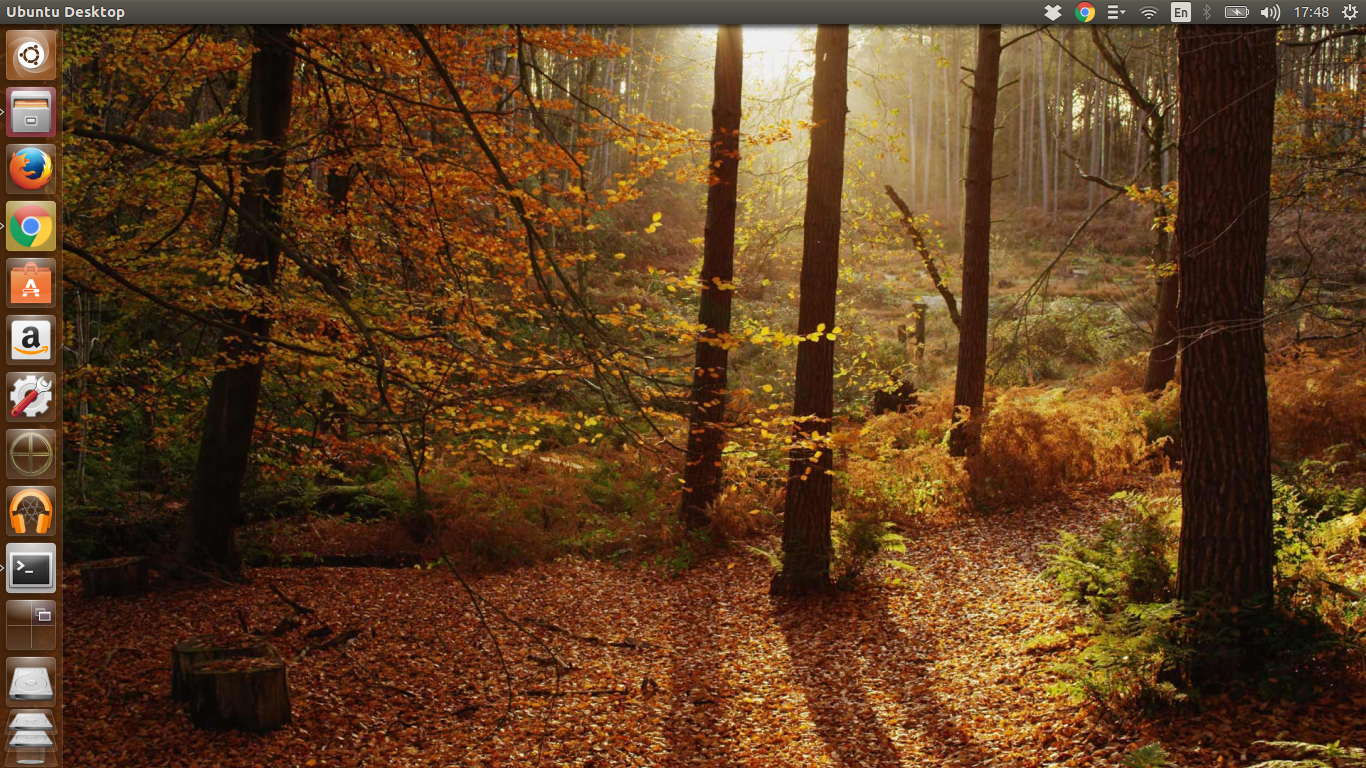
‘Bing Wallpapers For Linux’ Revived, Works Great On Ubuntu 16.04 LTS


Bing Wallpapers for Linux app brings the gorgeous “Bing Image of the Day” featured wallpapers to Linux. The app itself is pretty straight forward. You can either manually check/update if/when a new wallpaper is available or you could just restart your system and find Bing’s latest “featured image” as your desktop wallpaper. And I have to say, they are pretty darn good! By default, the app would check for new wallpapers every 3 hours.

Though I have tested this only on Ubuntu 16.04 LTS, this should work on other Debian based distros such as elementary OS or Linux Mint. Installation is just 3 steps, do the following in Terminal.

sudo add-apt-repository ppa:whizzzkid/bingwallpaper
sudo apt-get update
sudo apt-get install bingwallpaper

Done. As you can infer from the post-installation instructions in Terminal, the Bing Wallpapers for Linux app will automatically set the latest Bing “featured image” as your wallpaper upon reboot. But if you want to see the results immediately, you need to run the following command in Terminal. 

sh /usr/bin/bingwallpaper

Voila! And you have your latest Bing wallpaper up and running in Ubuntu! If you are inclined, all the images will be available at the following directory in Ubuntu: “~/Pictures/Bing/”. See project’s page on GitHub. Thanks to our reader Evan for sharing this news with us. And thanks for reading!

Source : http://www.techdrivein.com/2016/09/bing-wallpapers-for-linux-ubuntu1604.html


Italian Military’s LibreOffice Migration Underway; 100,000+ PCs To Be Migrated

As we reported exactly an year ago, Italian Military’s plans to migrate its entire fleet of desktop PCs to LibreOffice is well underway and has reached its first milestone. Since the project got started about an year ago, the Italian military have switched over 8000 PC workstations to LibreOffice.

As they say, well begun is half done. Italian Military’s long drawn out plans for migrating its computers from Microsoft Office to LibreOffice is well under way. In the first phase of the project, over 8000 of its PC workstations has been successfully migrated to LibreOffice. And over the next 4 years, LibreDifesa project (as it is officially known) aims to migrate Italian Military’s entire 100,000+ systems to LibreOffice. This would make it the largest free software transition involving desktop PCs by a European public administration.

LibreItalia, an an open source advocacy group based out of Italy, is helping Italian Military in this massive endeavour. LibreItalia volunteers are working with the military, training the trainers and the support staff. They also introduce LibreOffice to top officials, and help prepare the communication that explain the motive for the switch. The LibreDifesa project is expected to save EUR 26 to 29 million for the exchequer.

But saving money isn’t just the only concern for the Military. According to open source observatory, “the main motives for the switch include interoperability and long-term accessibility of documents and information. The military are standardising on the Open Document Format (ODF) and are urging its users to use free fonts.”

“The switch to LibreOffice is so far posing no real problems for the users”, said Sonia Montegiove, who is also the president of the LibreItalia open source advocacy group. She presented the LibreDifesa project last Friday at the FSFE Summit in Berlin.

Apparently, the military is also contemplating the use of Linux for their desktop workstations, and are piloting the Zimbra email, calendaring and collaboration suite. And it’s not just the Italian Military. Only recently we learned that big MNCs like Daimler AG has been migrating its critical servers to SUSE Linux. Even cities as large as Toulousein France and Turin in Italy have opted for Ubuntu and other open solutions thereby saving millions of Euros.

Source : http://www.techdrivein.com/2016/09/italian-militarys-libreoffice-migration.html

5 Easy Ways To Download YouTube Videos In Ubuntu

Be it Ubuntu or any other platform, one thing I learned over the years is the fact that people like to download their favorite YouTube videos and would want to keep a local copy of it no matter how hard it is. Luckily, there are plenty of tools to do this in Ubuntu without any hassles. Here, we’ll explore 5 of the most capable YouTube video downloading tools for Ubuntu.


Minitube: When it comes to “conventional” YouTube video streaming and downloading in Ubuntu, nothing beats Minitube. You can type any keyword, and Minitube will give you an endless stream of videos to watch, as simple as that. Minitube does not use the Flash Player either, which means lesser CPU consumption. And of course you can download videos in the quality you choose with the click of a button. What more, Minitube is available for download in default Ubuntu repositories (Edit: Ubuntu 16.04 LTS supported). Click the link above.

Youtube-dl: Command line tools are a big no-no to many. But I would argue otherwise. Youtube-dl is the best and easiest way to download YouTube videos in Ubuntu. It is fast and obviously nimble. And make no mistake, it has quite a wide range of functionalities. But if all you need is to download the best quality version of a particular video, open up the Terminal and type “youtube-dl”. Does that look complicated? A more detailed installation and how-to-use instructions can be found in our previous post on Youtube-dl

Gmediafinder: A good Minitube alternative loaded with YouTube streaming and downloading capabilities. In my experience, Minitube has been more stable and a little bit more easier to use when compared Gmediafinder. But it gets the job done. To install it though, you have to add the following PPA and it is not readily available in Ubuntu Software Center (Ubuntu 12.04, Ubuntu 12.10 and Ubuntu 13.04 supported). Just do the following in Terminal.

Movegrab: Yet another command-line tool for downloading YouTube videos in Ubuntu. Somehow, I am finding it difficult to download YouTube specific videos using Movgrab at the moment, even though I didn’t had any problem with sites like Dailymotion. Many consider Movgrab to be a superior alternative to my favorite Youtube-dl. More details and how-to-use instructions on Movgrab at WebUpd8. Do the following in Terminal to install Movgrab. 

YouTube Downloader Script: Here’s a simple cross-browser script that will add a download button to the YouTube page, literally. It will let you download your favorite videos in MP4 format (HD, Full HD and even 4K supported). See installation instructions below,

For Firefox: You need to download Greasemonkey extension for Firefox first. Afterwards, simply visit the script download page and install it.
For Chrome/Chromium: Install Tampermonkey extension first. And then, like before, visit the script download page and hit Install button on top.

Make no mistake, almost all the tools featured above (except the cross-browser script) does support other popular sites like Dailymotion, Vimeo, Metacafe, Liveleak, Blip.tv etc. apart from YouTube. Try them out and let us know your feedback. Thanks for reading. 
Source : http://www.techdrivein.com/2013/10/5-ways-to-download-youtube-videos-ubuntu-linux.html