10 Reasons Why Your Computer Hates You More Than Ever | Fix Slow Computer

Do you use a computer nowadays? The answer could be yes because that might be the machine you’re using to read this post. So, without doing any useless talk, let’s come to the point. What is the reason you think our computers or any other hardware run into problems? It could be one or many.
Other than the obvious and inevitable ones like aging, unexpected power surge, hardware failure, people not taking good care of their computer can be a topic of utmost concern. It can reduce the life expectancy of your machine and make it slower by the day.

Tech, computer

Why your computer hates you? Why is it so slow?
//pagead2.googlesyndication.com/pagead/js/adsbygoogle.js (adsbygoogle = window.adsbygoogle || []).push({}); So, if you’re among the careless ones and do one or many things mentioned below, your slow computer would most likely hate you if it were a person.

1. You deprive your PC of software updates and security patches

If you want to know the answer to the question “Why is my computer so slow?”, Chances are high you may find it on the software update screen. You might realize that tons of software updates and bug fixes are pending.

Software updates are important; your vendor might have done changes and updates to improve the machine’s overall performance.

So, not letting your computer update regularly would deprive it of new features, as well as, security patches for the latest bugs discovered now and then. And you should also keep the virus definitions of your antivirus software up to date.

The same goes for other software you’re using on your computer. Problems related to a particular app can affect the overall performance of your system.

2. You don’t care if there is dust and filth are all over your computer

dust inside computer

I can recall days in college, my roommate’s computer had layers of dust deposit, and he didn’t even take the pain to wipe it once in months.

If you want to prevent your computer from dying a premature death, keep in mind, dust and electronics don’t go along, ever. It shouldn’t be a thing that you have to wash your hands after using your computer.

Dust deposit also occurs inside a computer around the cooling fan, thus, trapping the outbound heat from the components within the body itself. Eventually, the internal hardware wears out faster than it should, and it is a reason for a slow computer over time. So, you need to keep your computer neat and tidy if you want it to last for a few years. Don’t forget to read our article on how to prevent your computer from overheating.

3. You don’t think before downloading stuff

System Update Malware Main

Don’t be that person who just fills their computer with things he doesn’t even know what they do or if they’re needed. It’s also the case that people don’t pay attention while downloading or installing software and end up getting adware and other freebies.
//pagead2.googlesyndication.com/pagead/js/adsbygoogle.js (adsbygoogle = window.adsbygoogle || []).push({}); These free tools can be bad for your computer and might open gates for malware invasion. That’s how ransomware sneaks into people’s computer. Becuase they click any random link and the rest happens in the background. Consider using some anti ransomware tools if you think some ransomware might land on your computer.

4. You’ve stored digital garbage on your hard drive

garbage in computer hard drive

Now, filling your hard drive with data won’t cost anything to you nor me. It’s your hard drive, and you can do whatever you want. But doing the same on a regular basis might upset your computer, especially, if most of the data is absolute garbage. Like, the photos of your childhood crush that are still lying in that hidden folder, or the videos in the study folder you have already watched.

In the case of Windows, features like System Restore and Hibernate require some space on your hard drive to store related data. Moreover, keeping unnecessary things on your hard drive increases work for the antivirus software and the defragger, as they have to handle more files while scanning.

Filling the hard drive up to the brim can have its disadvantages. Your PC needs some space vacant to work efficiently. The recommended amount of free space you should leave is between 10 to 15%, if you can manage more, it would be better.

Here is how you can free up around 20GB of hard drive space in Windows 10. To get more space, you should regularly clean the recycle bin and temporary files.

5. You load tons of programs during startup

Another answer to “Why is my computer so slow?” is that you allow too many applications to load on startup. Not to mention, most of them are installed by the OEM. Your PC will definitely hate you if you’re lazy enough to disable the unnecessary ones.

Slow computer fix: disable startup programs

disable startup programs windows 10

In Microsoft Windows 10, you can disable startup program by visiting Task Manager > Startup. Click the desired application in the list and click Disable. Similarly, you can prevent apps from loading at startup on your other operating systems like MacOS, and Linux distros. Similarly, you can read various other tips and tricks to make your Windows PC faster and improve performance.

6. You never shutdown or restart your computer

shutdown computer

Many people are often confused if they should keep their PC running forever, properly Shutdown after every use, or at least, Restart it once in a while. You can clear your confusion by reading our detailed post on whether you should restart your PC or not.

A system restart clears your computer’s RAM and shuts down all the processes. It helps the system get a fresh start after incidents of freezing or software crash, and solve problems like RAM leakage, or broken installations. So, use this slow computer fix and reduce your worries.

Read our complete guide explaining the difference between Fast Startup, Hybrid Sleep, Hibernate, Sleep, Shutdown

7. You never fix issues on your computer

Now, some apps or malware has been messing around with your system for a while, and you don’t seem to care much because all you believe is Netflix and chill, and Facebook. As a response, your angry computer slows down to the level that one day you can’t use it. Then you’ll be left with two choices: fix what’s broken or get a new machine.

Software related problems can be easily fixed. Like you can repair your hard drive using various tools mentioned in this post. For Windows, various common issues include the 100% disk usage, high RAM and CPU usage due to the ntoskrnl.exe process, etc.

You shouldn’t forget the hardware part. A faulty RAM chip or a hard drive going rogue can cause problems for your computer. It would make the computer lag and crash more often. So, consider replacing malfunctioning hardware as soon as possible.

8. You connect to unknown WiFi networks

free wifi public places

Everything that’s labeled “free” isn’t always good. Things are similar in case of WiFi. If you find open WiFi networks at public cafes, airports, parks, don’t immediately rush to connect to the network and soak some internet out of it. And here I am not talking about the WiFi networks other than ones authorities have deployed as a part of customer service.

The free WiFi network could be bait set up by some attacker trying to get access to people’s computer using different WiFi hacking apps to steal information and install malicious stuff including ransomware.

Moreover, you should turn off the Bluetooth radio on your computer. It’s also equally vulnerable as tons of attack vectors take advantage of Bluetooth.

9. Your computer’s security isn’t tight enough

computer security

Do you use the most famous password, 123456? Then you’re very well putting your innocent PC which thinks it’s password-protected at risk.

For various password cracking tools, guessing your so-called strong password is like a child’s play. Here are some tips sourced from experts that can help you create hard to crack passwords. If you are running Microsoft Windows, you can try these alternative sign-in options instead of typing a password.

10. You’re running your daddy’s operating system

OLD COMPUTER

Even though I still have a soft corner for Windows XP, I won’t prefer the deceased veteran over Windows 10. Apart from the feature updates offered by the new versions, new operating system versions also enhance the security by fixing bugs discovered in the past. And since the new OS versions are the part of their developers’ mainstream support, new bugs are fixed first for them.
//pagead2.googlesyndication.com/pagead/js/adsbygoogle.js (adsbygoogle = window.adsbygoogle || []).push({}); The story is similar in the case of other operating systems, be it the macOS or some Linux distribution. Even your beloved old OS would want you to be a part of the evolution and switch to a newer version.

So, these were some reason I think might slow down your computer, and your digital friend might stop loving you if you don’t change your habits. If you have something to add, you can drop your suggestion in the comments.

Link : https://fossbytes.com/reasons-why-my-computer-slow-fix/

75% Android Apps Track Users With 3rd Party Tools, Says Study

A combined study conducted by a French research organization Exodus Privacy and the Privacy Lab, Yale University concludes that around 3 out of every 4 Android apps track users in some way, using third-party trackers.
While, what one might initially assume, the tracking may not be evil but for advertising, behavior analytics, location tracking, etc.

Exodus Privacy checked more than 300 Google Play apps for the signatures of the 25 trackers currently known to them; 75% of the apps had one or more.

The list of Android apps includes popular names like Uber, Tinder, Spotify, and OKCupid which have a Google-made tracker called Crashlytics. It helps the developers gather details about app crashes, but the tracker can also know about user activity among other features.

Another tracker found is called Fidzup, which is capable of tracking phones and their users through the use of sound inaudible to humans. However, the French company behind the tracker claims that the technology is not used anymore. The tracker profiles created during the study have been uploaded to GitHub (find it here).
//pagead2.googlesyndication.com/pagead/js/adsbygoogle.js (adsbygoogle = window.adsbygoogle || []).push({});
“There is an entire industry based on these trackers, and apps identified as “clean” today may contain trackers that have not yet been identified.” Privacy Lab said in a press release that developer may add app trackers in future versions of their apps.

Everyday users are unknown to most of the trackers used by the apps. Also, the lack of transparency regarding the data collection, transmission, and processing raises privacy and security concerns. Privacy Lab says that network traffic associated with such apps generally hops over multiple countries and legal jurisdictions.

Apps made for iOS weren’t a part of the study, but according to Privacy Lab, the story might not be much different for Apple’s App Store. Many app developers distribute apps for both Android and iOS.

“Android users, and users of all app stores, deserve a trusted chain of software development, distribution, and installation that does not include unknown or masked third-party code.”

The Lab has called app developers and Google itself to introduce more transparency in security and privacy with respect to the app trackers.

The tool used by Exodus Privacy to verify tracker signatures has also been open sourced and uploaded to their GitHub repo.

Link : https://fossbytes.com/android-apps-tracker-google-play/

PHP 7.2 And Kotlin 1.2 Programming Languages Released

Kotlin 1.2

Moving to Kotlin–the latest programming language to get official Android support. JetBrains announced Kotlin 1.2 and called it a major release which will let the devs reuse code between JVM and JS. The release announcement states that now one can write the business logic of an app once and reuse for the backend, browser frontend, and Android mobile app. So, this release supports multiplatform projects.

One should also note that IntelliJ IDEA 2017.3 (it’s being released this week) already comes bundled with Kotlin 1.2. In case you’re using Android Studio or older version of IntelliJ IDEA, you can get the update.
//pagead2.googlesyndication.com/pagead/js/adsbygoogle.js (adsbygoogle = window.adsbygoogle || []).push({});
JetBrains says that they’ve been able to deliver about 25% performance improvement over Kotlin 1.1. In further 1.2.x updates, performance will be further improved.

CompilationSpeed kotlin 1.2
Image: JetBrains
The company has also worked to bring a number of minor improvements to language and standard library, for ex., now there’s a more concise syntax for passing multiple arguments to an annotation.

PHP 7.2

As the second feature update to the PHP 7 series, the PHP development team has shipped the PHP 7.2.0 release. As expected, this releases comes with many improvements and features. You can find the source downloads of PHP 7.2.0 on the downloads page.

As per the release notes, the major improvements and new features include the ability to convert numeric keys in object/array casts, object typehint, counting of non-countable objects, and HasContext as Object.

That’s not all. PHP 7.2 also improves TLS constants to sane values. The Mycrypt extension has been removed and new sodium extension has been added.

“The migration guide is available in the PHP Manual. Please consult it for the detailed list of new features and backward incompatible changes,” PHP 7.2 release announcement adds.

Link : https://fossbytes.com/php-7-2-kotlin-1-2-programming-languages-releas/

Qualcomm Is Looking To Get Apple’s iPhone X And iPhone 8 Banned

The ongoing legal battle between Apple and Qualcomm continues to get messier. The new suit filing (PDF) from Qualcomm aims to ban iPhone X and iPhone 8 models in the US. The company has accused Cupertino of violating a total of 16 patents.
Prior to this development, on November 29th, Apple sued Qualcomm over Snapdragon 800 and 820 processors. As per the claims, the company is violating eight or more patents related to power management.

Coming back to the latest lawsuit, Qualcomm’s claims that Apple violates patents related to memory design, power management, RF transceivers, etc. Some of them are also related to multi-touch displays and how WebOS operated on the Palm Pre.
//pagead2.googlesyndication.com/pagead/js/adsbygoogle.js (adsbygoogle = window.adsbygoogle || []).push({});
“Rather than pay Qualcomm for the technology Apple uses, Apple has taken extraordinary measures to avoid paying Qualcomm for the fair value of Qualcomm’s patents,” the complaint states. It also states that Apple’s founder had boasted in the past that Apple “steals” great ideas of others.

That’s not all. The patent also claims that Apple is infringing copyright while using the technology being used to create the iPhone’s new Portrait Mode effect as well as the well-known tap-to-focus feature of the camera.

Apart from demanding an unspecified amount of payment from Apple and stopping the use of technologies, Qualcomm has also asked in a claim with US International Trade Commission to ban the imports of iPhone X, according to San Diego Tribune.

The company had already filed similar series of claims in July, asking for payments and seeking a ban. This new lawsuit has updated those claims and included the new iPhone models which weren’t released back then.

Link : https://fossbytes.com/qualcomm-iphone-x-iphone-8-sales-banned/

8 Best Secure And Encrypted Messaging Apps For Android & iOS

Millions of people exchange message all over the world every day. But, how many people know what happens to a message once they send it? Is it being intercepted by any third-party users? Well, the truth is, we live in an age of internet surveillance and data logging. Agencies and organizations often want access to private communication; we have had instances of CIA hacking attempts and attempts by FBI to gain unauthorized access. Such events have raised concerns among users. To tackle such issues, there has been a rise in secure messaging apps. These apps focus on keeping your privacy intact by launching end-to-end encryption services.
End-to-end encryption is when your service provider doesn’t keep copies of the messages you send on their servers, i.e., only the people you are communicating with can access the message. Nobody in between, neither the government nor the developers can access it.
So, if confidentiality is critical for your communication, then check out this list of some best encrypted messaging apps for Android and iOS platforms. These apps are safe to download and provides utmost security to your data.
Note: This list isn’t in an order of preference; it’s a compilation of the best Android encrypted messaging apps. You’re advised to choose one as per your need.

//pagead2.googlesyndication.com/pagead/js/adsbygoogle.js (adsbygoogle = window.adsbygoogle || []).push({}); 8 Best Encrypted Messaging Apps

1. Signal Private Messenger

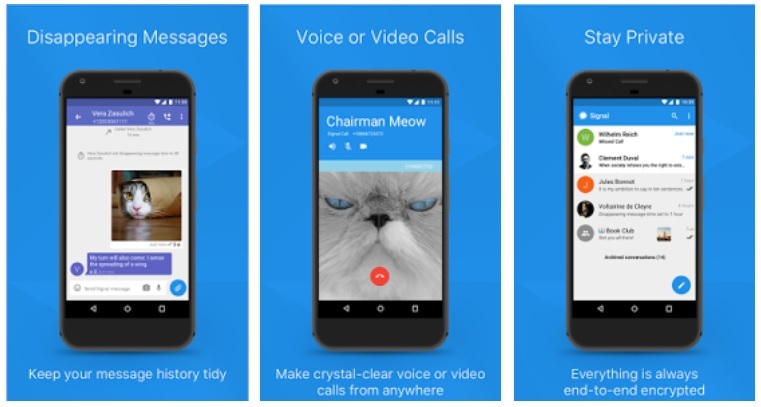
Being one of the few apps to claim an endorsement from Edward Snowden, Signal Private Messenger has made a place among the most secure messaging apps for Android and iOS users. It uses an advanced end-to-end encryption to secure all the messages shared with other Signal users.
Signal Private Messenger is entirely free and is quite easy to use. The best thing about the app is that it is open source. Hence, the experts can freely inspect the app’s code for any flaws in its security.
encrypted messaging app: signal private messenger
There are other features like highly encrypted voice calls, group chats, media transfer, archive functionality; and all these do not require any PIN codes or other login credentials. Also, the messages can self-destruct after a set amount of time.
Moreover, you can also use the app on your computer with its new Chrome browser plugin. The app is excellent to use and worth a try.

2. WhatsApp

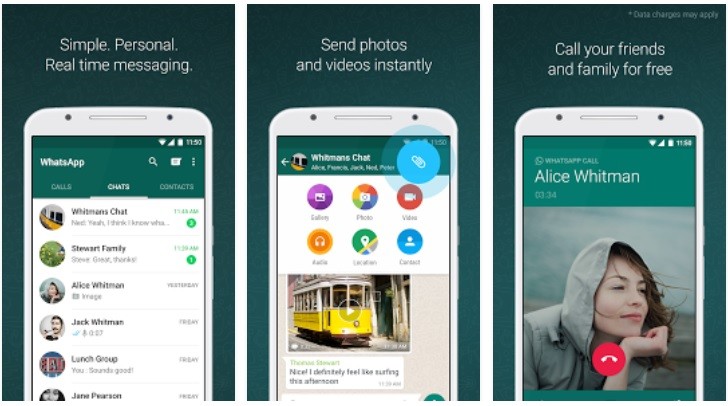
WhatsApp is one of the most popular and secure messaging apps for Android and iOS which is trusted by over 1 billion users. In 2014, the app partnered with Open Whisper Systems, to integrate the same end-to-end encrypted chat protocol as Signal. Its encryption technique ensures that only the sender and the receiver can read the messages, and nobody else, not even WhatsApp.
Also, the app comes with all kinds of amazing features like the ability to send voice messages, photos, videos, GIFs, video calls, group chats, location sharing and much more.
one-to-one encrypted messaging app WhatsApp
It has a simple and user-friendly interface which is very easy to handle. With the “WhatsApp Web” feature, you can also send and receive messages from your computer’s browser. The app is free to download and is ad-free.

//pagead2.googlesyndication.com/pagead/js/adsbygoogle.js (adsbygoogle = window.adsbygoogle || []).push({});

3. Telegram

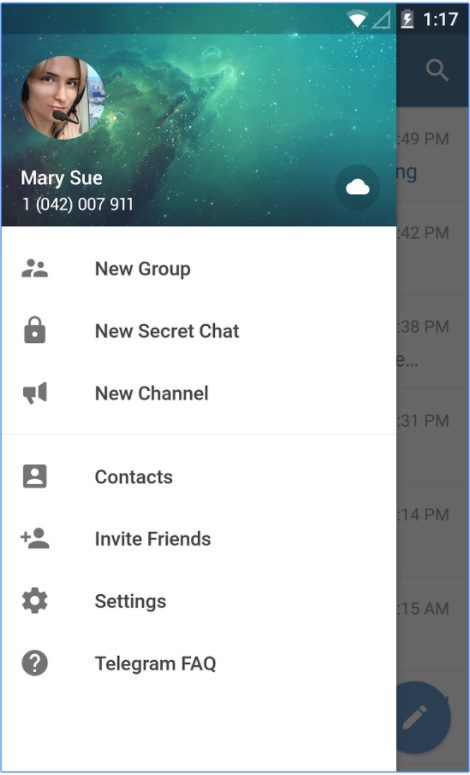
Telegram connects people around the globe through a unique network of data centers. It is known to provide the best security, which never gives any third-party access to your data. When a user enables “secrets chats” function, the messages can self-destruct automatically across all the devices involved. Also, if you prefer, you can set an option for self-destructing of your account within a set time.
With Telegram, you can easily sync your messages across various devices at once. The app carries all the essential features, such as sending media files, videos, documents of any type ( .DOC, .MP3, .ZIP, etc.), or set up bots for specific tasks.
end to end encrption: telegram
It has a very minimalistic interface that makes the app quite handy to use. Moreover, this encrypted text app is entirely free. It doesn’t display any ads and does not include any subscription fees.

4. Threema

With over a million downloads, Threema is one of the most trusted secure messaging app for Android, iOS, and Windows phone. The app is a paid one which costs US$ 2.99. It packs all the necessary features that are needed to keep your data out of government, corporation and hacker’s hands.
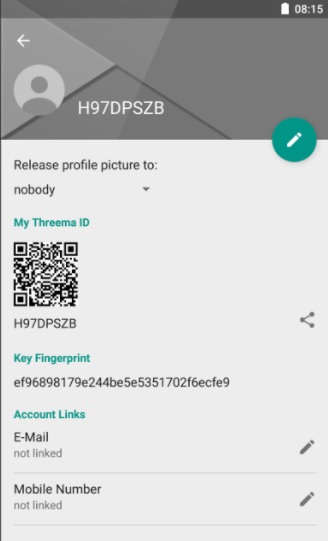
The app does not ask for an email ID or phone number while registering. Instead, it provides you a unique Threema ID. In addition to text messages, Threema allows end-to-end encryption for voice calls, group chats, files and even status messages. Messages sent from the app are immediately deleted from the servers, once they are delivered.
secure messaging app threema
Threema uses the trusted open source Networking and Cryptography library(NaCl) to protect your communication. With Threema web, you can also use the app from your desktop.

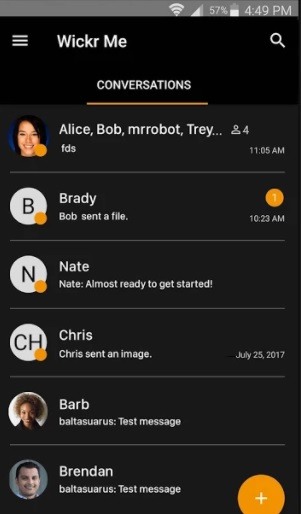
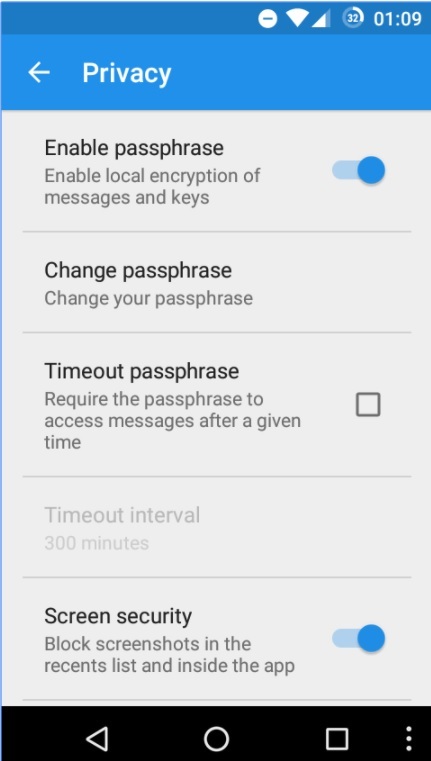
5. Wickr Me – Private Messenger

Wickr Me is another impressive encrypted messaging app for Android as well as iOS. It encrypts every message using advanced vetted end-to-end encryption. You can send private, self-destructing messages, photos, videos, and voice messages to other Wickr users.
The app has introduced a “Shredder” feature that irreversibly deletes all your chats, shared media contents from your device. You can even set “Expiration Timer” to your messages. Wickr requires no phone number or email address while registering, and it does not store any metadata associated with your communication.
wicker me: private messenger
In addition to all these trustworthy features, this secure texting app is entirely free to use, and it does not display any ads.

6. Silence

Formerly known as SMS Secure, Silence is a remarkable end-to-end encrypted messaging app for your smartphone. It uses Axolotl encryption protection to provide end-to-end encryption to other Silence users.  If the other party does not have the app installed, you can still communicate with it like a regular SMS application.
secure messaging app silence
Silence work like an ordinary SMS application, so it requires no server or internet connection on your phone. You do not need to register or sign-up with any login credentials. Moreover, the app is free and is fully open source, i.e., It enables anyone to verify that its code is free of vulnerabilities or flaws.

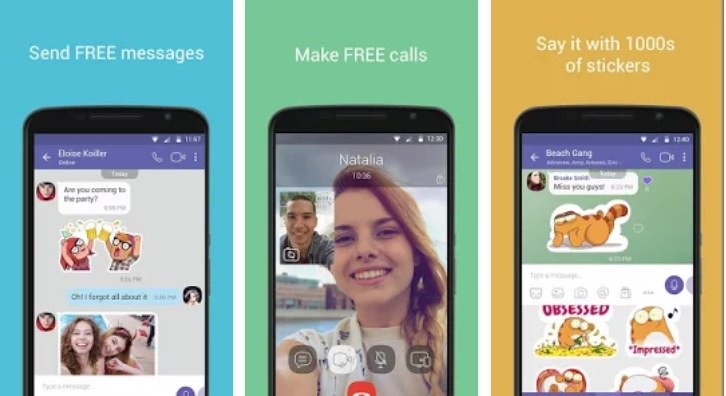
7. Viber Messenger

Viber is a cross-platform encrypted messaging app which was initially launched for the iPhone. The app is similar to Skype. Viber was first seen on Android platform in 2012, followed by BlackBerry and Windows phone. In their latest encryption technology, Viber has introduced the end-to-end encryption service on all the available platforms- Mac, PC, iOS, and Android. 
The unique thing about Viber is that it uses a color-coded system to show how protected a conversation is. Grey color denotes encrypted communication. Green signifies encrypted communication with trusted contact and red means that there is an issue with the authentication key. You can also choose to hide any specific chats from your screen and access them later.
viber
Apart from being a highly secure messaging app, it also provides you the facility to play games, follow public accounts, share your contacts, media files, turn on location and much more. It has over 800 million users worldwide, and it is free to download.
//pagead2.googlesyndication.com/pagead/js/adsbygoogle.js (adsbygoogle = window.adsbygoogle || []).push({});

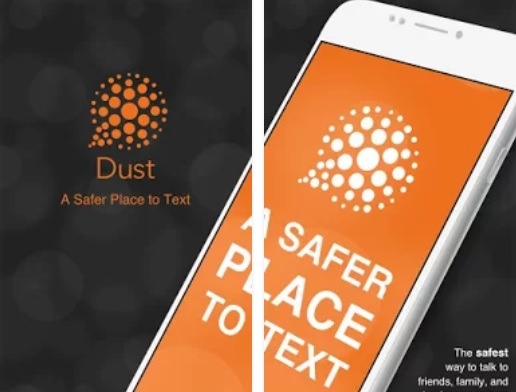
8. Dust

This application is built with complete security in mind. The app was formerly known as Cyber-Dust. Dust conversations are heavily encrypted, and it offers end-to-end encryption to other users. Dust does not store messages in any permanent storage, and you can even set your conversations to erase immediately after the recipient reads them.
dust
The app has disabled the possibility of taking screenshots of your messages. It automatically detects and notifies you if somebody takes a screenshot, which makes it one of the most secure messaging apps around. Moreover, Dust is also a social media platform, and it lets you follow people, send and receive text messages, stickers, links, videos and more. It is free to download.
Apart from the above-mentioned secure texting apps, there are a few more as well. Wire is a notable application that provides end-to-end encryption for all your communications. Facebook Messenger and Apple’s iMessage too provide encryption but they’ve faced flak from the researchers in the past.
Did you like this list of best encrypted messaging apps for Android to be helpful? Share your reviews in the comments below.
Source : https://fossbytes.com/best-secure-encrypted-messaging-apps/

How To Link Your Android or iOS Device To Windows 10? | Connect Phone To Windows 10

With the Fall Creators Update, Microsoft will allow users to link Android and iOS devices to their Windows 10 PCs and use the ‘Continue on PC’ feature. It lets you push web pages from your phone to your PC without needing to connect a USB cable or same network.

The Continue on PC feature is currently available for users running Windows 10 Fall Creators Update. You can use the steps mentioned in this post to connect your phone to Windows 10 PC.

(adsbygoogle = window.adsbygoogle || []).push({});

Connect Android or iOS Phone to Windows 10

You should have a working phone number if you want to link your phone to your Windows PC. In this post, I have used an Android device, but the steps for iOS devices are similar. Follow the steps written below:
  1. On your Android or iOS device, download the Cortana app and sign-in using the same credentials you use on your PC.
  2. On your Windows 10 PC, open Settings app.
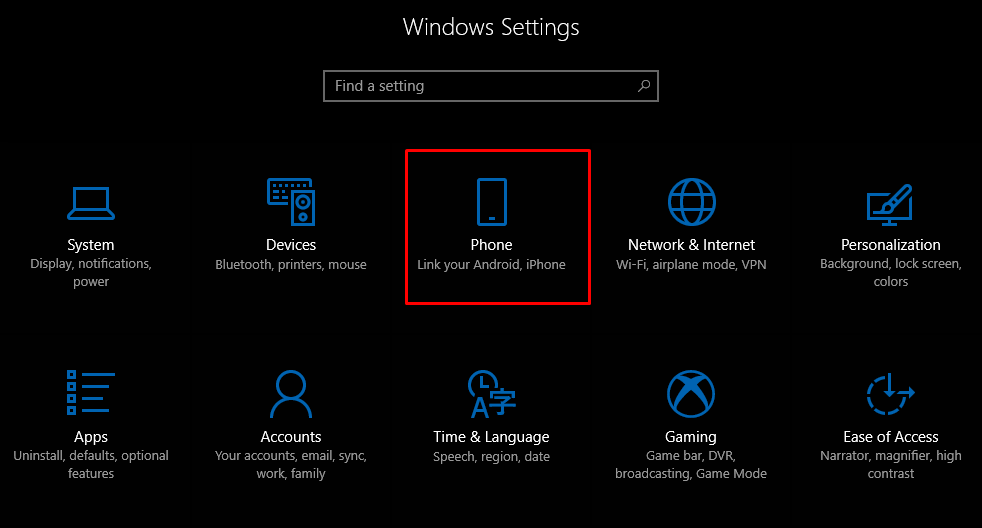
  3. Click on the Phone option.
    Continue on PC 1
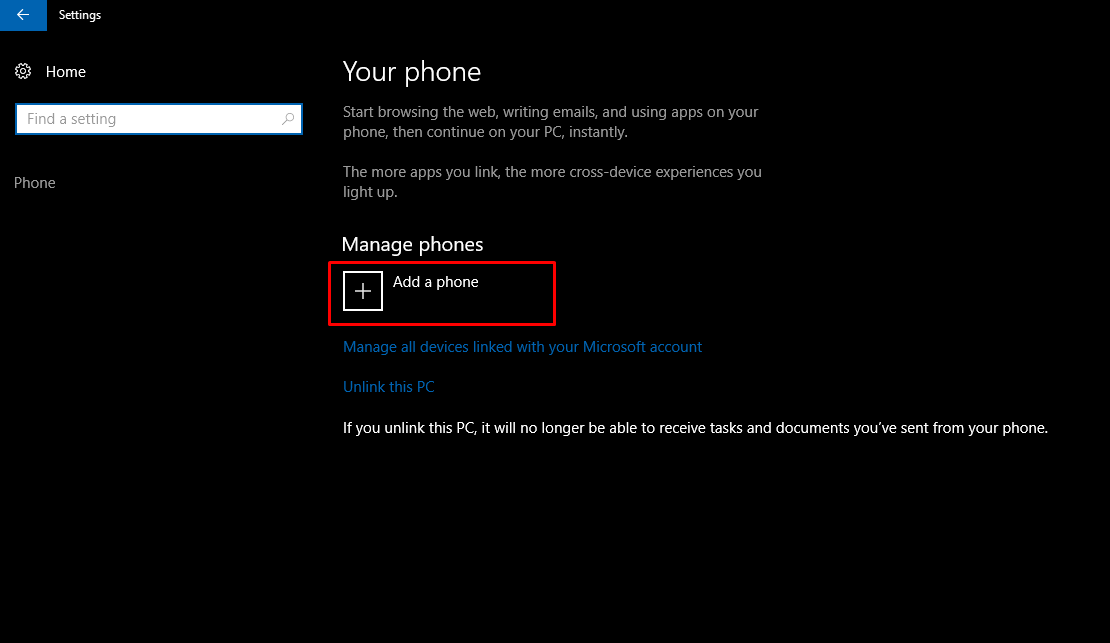
  4. Now, to connect your Android or iOS device to Windows 10, you can start by clicking Add a phone. Make sure that your PC and phone are connected to the internet.
    Continue on PC 2
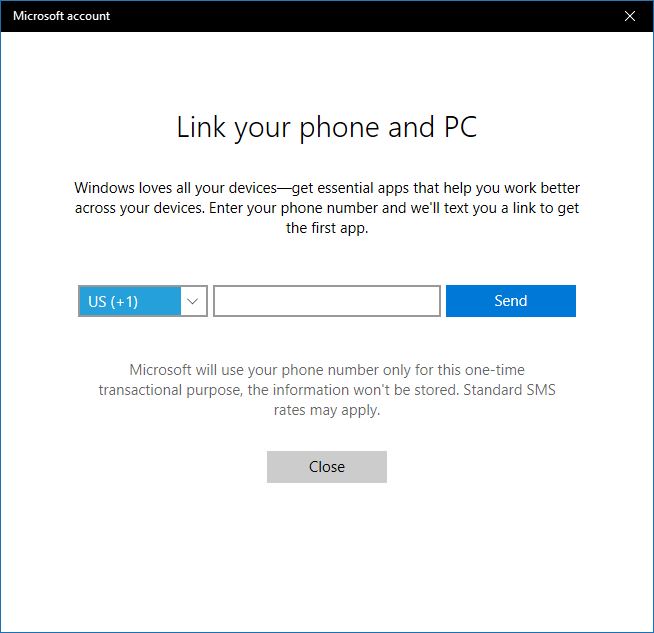
  5. On the new window that appears, choose your Country code and fill in your mobile number. Click Send to receive the text message on your phone.
    Continue on PC 3
  6. Download the Android app called Microsoft Apps using the link. It’s required when you want to connect Android to Windows 10 and use the Continue on PC feature.
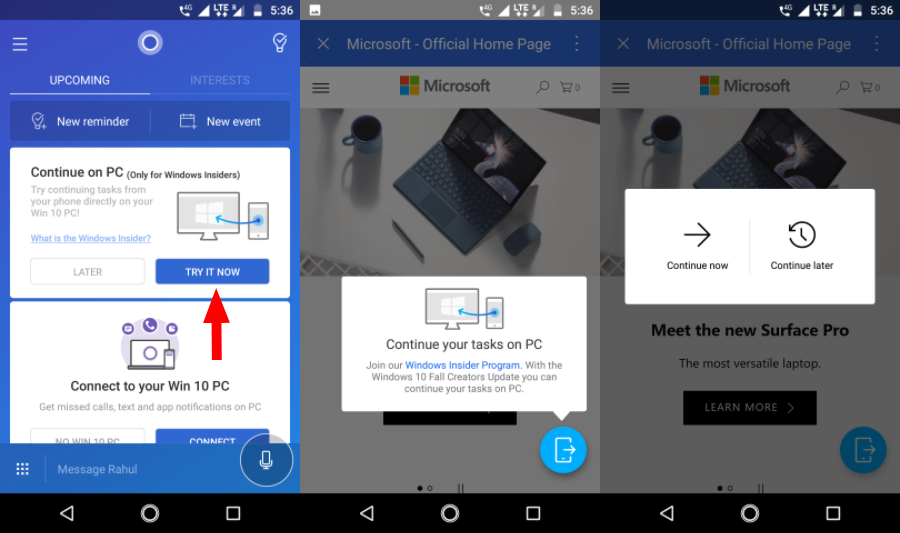
  7. Now, in the Cortana app, look for the option that says Continue your tasks on PC. Tap Try it now.
    Turn On Continue on PC 4

(adsbygoogle = window.adsbygoogle || []).push({});

Once done, you’ll start seeing a new ‘Continue on PC’ button in the Cortana app. For any news story you open in the Cortana app, you can send it to your PC by tapping that button.
The linking is only a one-time process. If you try to send the SMS again, you won’t receive it if you have had successful verification, as it was my case. I couldn’t find any option to ‘unlink’ or remove the device and send the text again. To download Microsoft Apps at a later stage, you can find the same on Google Play.
You can unlink the PC if you don’t want your device to push links to your PC. But this would stop all the connected Android and iOS devices from doing so.

Continue on PC is not limited to Cortana

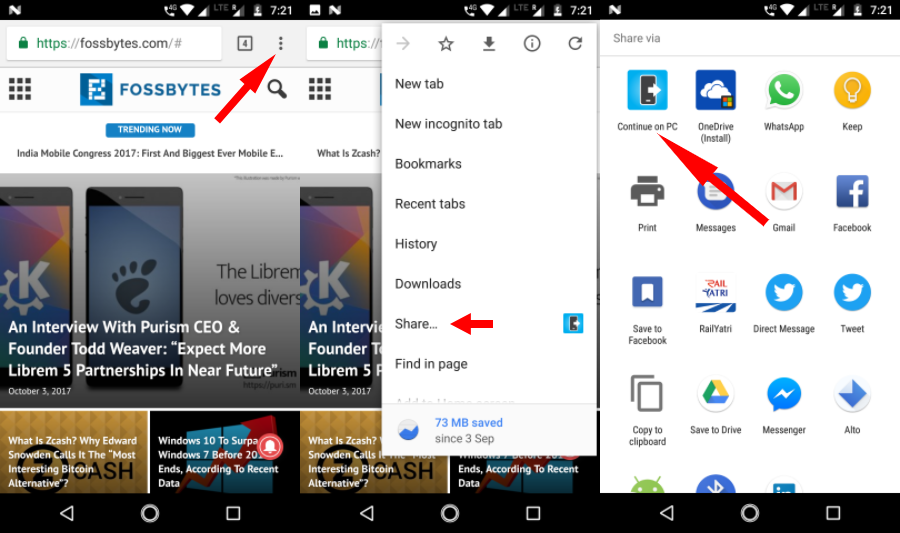
You can use the feature on other apps. For instance, visit any web page in Google Chrome and open the Share section by tapping the Settings button. Here, you’ll find the Continue on PC option which works the same way as mentioned earlier.
Continue on PC 5 Share Web Links Google Chrome
You can also send images from your phone. However, it requires an additional step. In Google Photos app, tap Share > Continue on PC. Now, it asks you to create a link for the file to be shared. So, you simply have to select the first option if you want to send only one image.
Similarly, you can open links stored in Google Keep directly on your Windows 10 PC. The Continue on PC option is available in virtually all the places where you can find Android’s native share option. But it’ll only work if there is a web link to be shared.

What’s more?

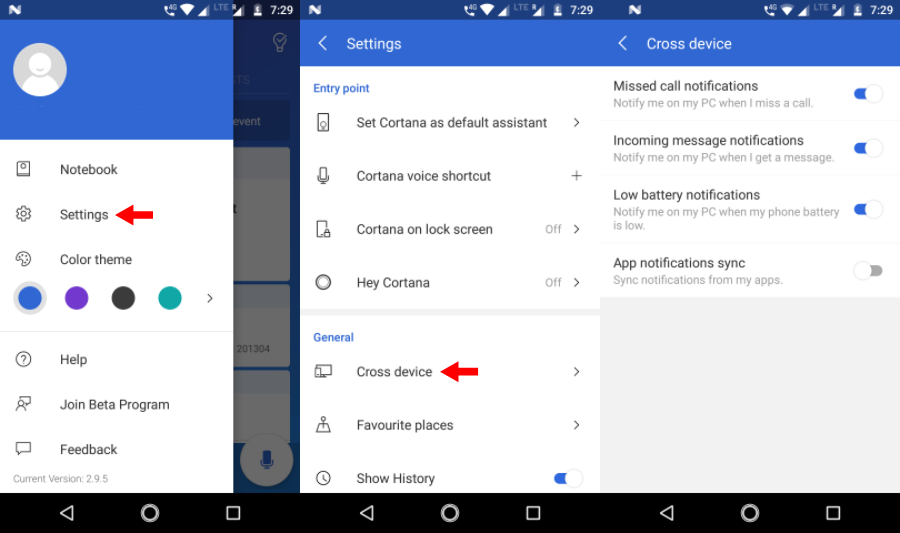
You can club the likes of the Continue on PC feature with existing syncing capabilities offered by Microsoft as a part of their cross-device experience. Through the Cortana app, you can sync various things like notifications for missed calls, incoming messages, low battery status, and notifications from other apps can appear in the Windows 10 Action Center.
Continue on PC 6 Sync App Notifications
To enable these sync options, visit Cortana > Swipe from left of the screen > Settings > Cross Device. You can select individual Android apps for which you want to enable notifications on your Windows 10 PC. Tap Choose what to sync to select apps. By default notifications for all the apps are disabled.

Connect Phone to Windows 10 PC via USB

What is Microsoft Phone Companion?

Continue on PC 8
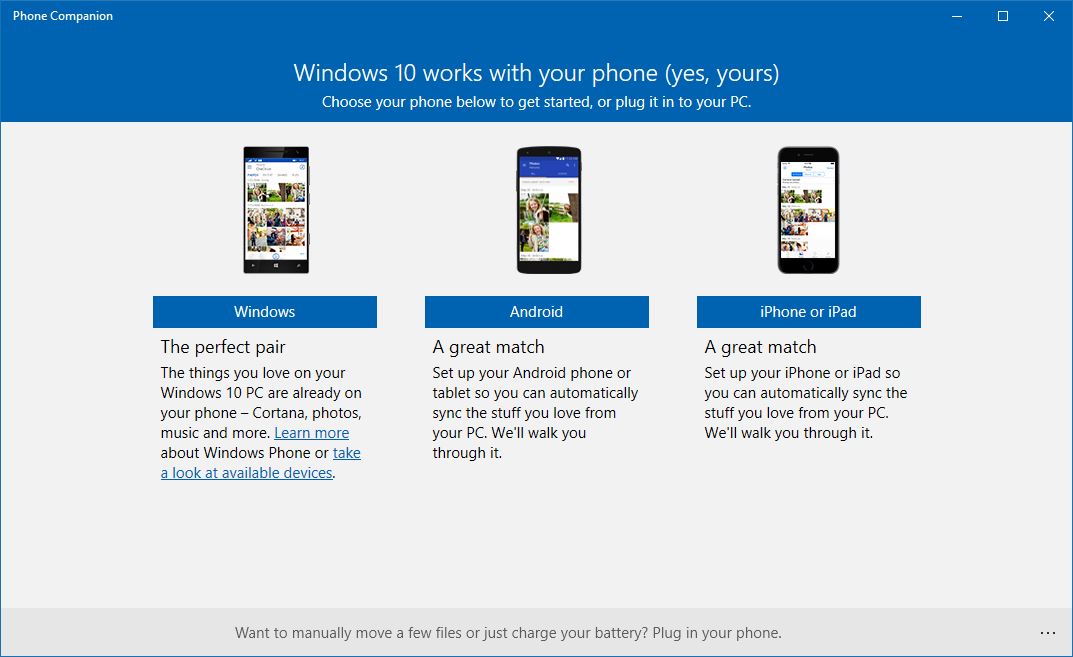
If you want to connect phone to Windows 10 PC via a USB cable, Microsoft already has an app for that. Known as Microsoft Phone Companion, the app allows you to sync your Android, iOS, or Windows Phone with your PC. It’s available in the Windows Store for Windows 8.1 and above.

How to use Microsoft Phone Companion?

(adsbygoogle = window.adsbygoogle || []).push({});

Use Microsoft Phone Companion to Continue on PC 7
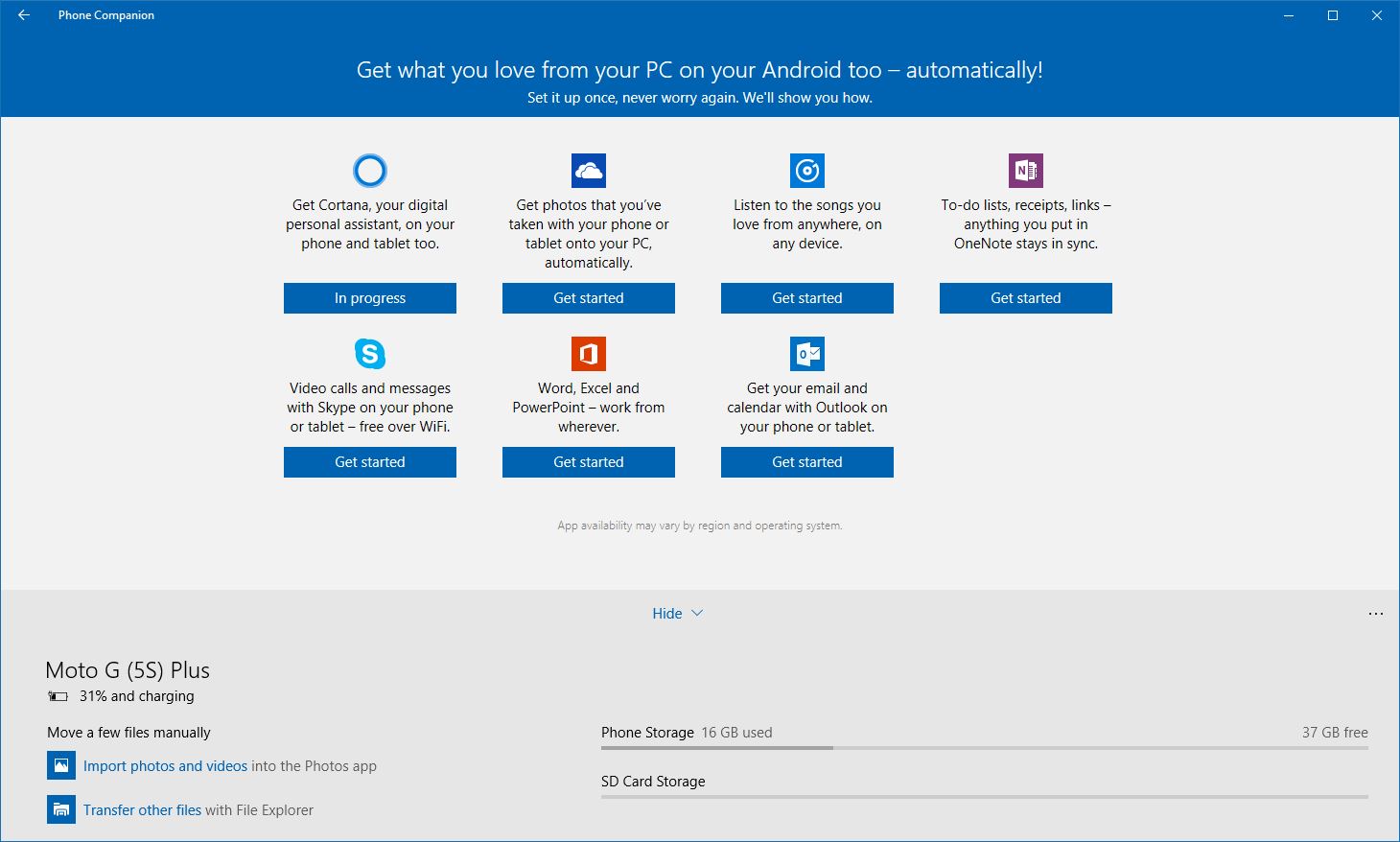
You can simply download the app from the Store. Next, connect your Android, iOS, or Windows Phone and run the app. It’ll automatically detect the device (provided the drivers are installed) and show relevant details like charging status, storage, etc.
You can backup files to your computer locally and set up different Microsoft services on your phone.
So, this was a brief overview of the method which can help you link your Android or iOS device to your Windows 10 PC. If you’re running the Fall Creators Update, you can try the feature and tell your experience in the comments.
Source : https://fossbytes.com/connect-phone-windows-10-sync-android-ios/

Top500 Supercomputers: 486 Runs On Linux!

No surprises there. Why would any supercomputer vendor ever use anything other than an open code is beyond me. The latest Top500 list of Supercomputers is out and Linux absolutely dominates the scene while Ubuntu is the flavour that powers the world’s fastest Supercomputer.

top 500 supercomputers run linux

Linux Powers World’s Fastest Supercomputers
Linux’s absolute domination of the world’s most sophisticated supercomputers doesn’t come as a surprise. In fact, the enterprise sector had long embraced the Linux eco-system with open arms. So much so that, the world’s fastest Supercomputer runs a Chinese derivative of Ubuntu called Ubuntu Kylin, as revealed by Mark Shuttleworth himself during his keynote speech at OpenStack Summit. Ubuntu Kylin is now an official Ubuntu flavour.

Top500 Supercomputers list reveals quite a number of interesting statistics. Out of 500 top Supercomputers, 486 of them runs on Linux, 12 on Unix, 1 mixed and 1 of them on Windows. Among the hardware vendors, HP tops the list with 35.6% market-share while IBM and Cray Inc. takes 2nd and 3rd spot with 18.2% and 14.2% market-share respectively. Curious to know who runs that lone Windows based Supercomputer? The lone remaining Windows machine is Shanghai Supercomputer Center’s Magic Box built by Dawning in 2008. It’s #436 on the list.

Tianhe-2 (MilkyWay-2) remains the world’s fastest supercomputer as before (in 2013, 2014 and 2015). Situated in National Super Computer Center in Guangzhou, China, Tianhe-2 is a 33.86-petaflops supercomputer built at an estimated cost of US$390 million. Second in the list is Oak Ridge National Laboratory’s Titan supercomputer situated in United States. See the full list by Top500.

Source : http://www.techdrivein.com/2015/07/out-of-top500-supercomputers-486-runs-linux.html

11 Years Of Ubuntu: History Revisited (2015)

Ubuntu has touched the lives of many among us in different ways. I can’t speak for everyone here and hence I will share a few of my experiences with Ubuntu. For me, Ubuntu was the gateway to Linux and to the whole open source way of thinking. Ubuntu taught me that computers are not all about Windows OS and that there are far better alternatives than the “default” Windows desktop which you have been made to see and learn from a younger age. Lets go back in time and see how Ubuntu evolved over the years to become what it is now – a totally awesome, user-friendly and fast changing Linux based distro for ‘human beings’.

A Brief History of Ubuntu

A new version of Ubuntu is released every 6 months like clockwork, and as of Oct 2015, a grand total of 23 stable releases has been delivered. Each release also has a specific code name which are made using an adjective and an animal with the same first letter (e.g. Hardy Heron, Wily Werewolf). We will do a brief overview of each one of them below. A walk back through the history of Ubuntu. Read on.

Ubuntu 4.10 (Warty Warthog)

evolution of Ubuntu
Ubuntu 4.10 codenamed “Warty Warthog” marked the beginning of a new kid in the block, the first and foremost release of Ubuntu by Canonical foundation. This new Linux distro was based on Debian and aimed at giving new users a trouble free experience of Linux. This release also crucially brought the Ubuntu shipit feature where by users could get Ubuntu installation CD’s mailed to their homes for free through a simple signup. Shipit was one of those key USPs that made Ubuntu a very popular choice among youngsters in those early days. I think I still have several lying around near my old PC. And who can forget those Ubuntu branded stickers!

Ubuntu 5.04 (Hoary Hedgehog)

Ubuntu History complete

Ubuntu 5.04 codenamed “Hoary Hedgehog” was released on 8 April 2005. From this second release onwards, massive changes started to trickle in. Ubuntu 5.04 added many new features including an update manager, upgrade notifier, readahead and grepmap, suspend, hibernate and standby support, dynamic frequency scaling for processors among many other major improvements. Ubuntu 5.04 was so ahead of its time that it even introduced support for installation from USB devices. 

Ubuntu 5.10 (Breezy Badger)

ubuntu history 2015 edition

Ubuntu 5.10 codenamed “Breezy Badger” was released on 12 October 2005, the third stable release of Ubuntu by Canonical. Ubuntu 5.10 added several new features including a graphical bootloader (Usplash), an Add/Remove Applications tool, a menu editor, an easy language selector, crucial logical volume management support, full Hewlett-Packard printer support, OEM installer support among others. More importantly, this release also brought in Launchpad integration for bug reporting and software development.

Ubuntu 6.06 LTS (Dapper Drake)

ubuntu history

Ubuntu 6.06 LTS codenamed “Dapper Drake” was released on 1 June 2006. It was also the first Long Term Support(LTS) release. This was also the only time when the Ubuntu release cycle was slightly pushed forward by 2 months owing to all sorts of delays. Many new features were introduced including having the Live CD and Install CD merged onto one disc, a graphical installer on Live CD, a network manager for easy switching of multiple wired and wireless connections, implementation of Humanlooks theme among other improvements.

Ubuntu 6.10 (Edgy Eft)

walk back through the history of ubuntu
Ubuntu 6.10 codenamed “Edgy Eft” was released on 26 October 2006, Canonical’s fifth Ubuntu release. Tomboy, F-Spot became new defaults. Human theme also went through heavy modifications.

Ubuntu 7.04 (Feisty Fawn)

travel through the history of ubuntu

Ubuntu 7.04 codenamed “Feisty Fawn” was released on 19 April 2007. This release had a very special significance for me. Feisty was my first real Linux experience. I was a complete noob to the whole Linux way of life then and barely installed Ubuntu in my laptop with the help of friends and Ubuntu Forums. And to be frank, the primary reason for me trying out Ubuntu was Compiz and all the bling that came with it. In those clogged XP-Vista days, Compiz was (and it still is in many ways) a breath of fresh air.

Ubuntu 7.10 (Gutsy Gibbon)

ubuntu history

Ubuntu 7.10 codenamed “Gutsy Gibbon” released on 18 October 2007. Ubuntu 7.10 introduced Compiz Fusion as a default feature. This seventh release of Ubuntu also marked the introduction of full NTFS support.

Ubuntu 8.04 LTS (Hardy Heron)

history of ubuntu

Ubuntu 8.04 codenamed “Hardy Heron” was released on 24 April 2008. This was the second LTS version of Ubuntu. In my opinion, this release had one of the best designed Ubuntu wallpaper as default. Brasero disc burner and transmission bit torrent client were introduced during this release. Controversial Pulse Audio became the new default system sound server. This release also introduced Wubi installer using which you can install Ubuntu inside Windows without repartitioning the disk.

Ubuntu 8.10 (Intrepid Ibex)

ubuntu history revisited

Ubuntu 8.10 codenamed Intrepid Ibex was released on 30 October 2008. It was the ninth Ubuntu release and it was also one of my favorite releases. This release introduced useful Ubuntu Live USB creator application. Guest session functionality was also introduced during Intrepid Ibex release.

Ubuntu 9.04 (Jaunty Jackalope)

ubuntu history

Ubuntu 9.04 “Jaunty Jackalope” was released on 23 April 2009. This release marked the first time that all of Ubuntu’s core development moved to the Bazaar distributed revision control system which is designed to make it easier for anyone to contribute to free and open source software projects. Faster boot time was another major achievement of this release.

Ubuntu 9.10 (Karmic Koala)

evolution of ubuntu

Ubuntu 9.10 codenamed “Karmic Koala” released on 29 October 2009. From this release onwards, Ubuntu slowly started to shift gears. A slew of changes started to flood Ubuntu. During Ubuntu Karmic’s release cycle, Canonical introduced the One Hundred Paper Cuts project, focusing developers to fix minor usability issues. This was a major move and it helped bring a lot of polish for Ubuntu in the latter releases. This release also introduced Ubuntu Software Center.

Ubuntu 10.04 LTS (Lucid Lynx)

a brief history of ubuntu

Ubuntu 10.04 codenamed “Lucid Lynx” was released on 29 April 2010. Ubuntu 10.04 “Lucid Lynx” is my favorite release to date and it brought about the biggest amount of changes ever. Ubuntu had a complete branding makeover during this release cycle. Even the brown theme was ditched for the first time for a more bright and pleasant looking “Light” inspired theme. Changes Ubuntu 10.04 Lucid Lynx went through.

Ubuntu 10.10 (Maverick Meerkat)

ubuntu history

Ubuntu 10.10 codenamed “Maverick Meerkat” was released on 10 October 2010 (10.10.10) at around 10:10 UTC. Close to the heels of Ubuntu Lucid release, Ubuntu Maverick was also packed with new features and improvements. Ubuntu Software Center became one of the applications that received maximum amount of attention. Canonical’s attention to detail started showing up big time during Ubuntu 10.10 release cycle.

Ubuntu 11.04 (Natty Narwhal)

11 years of ubuntu history

Ubuntu 11.04 “Natty Narwhal” was perhaps *the* most controversial Ubuntu release ever. Canonical introduced Unity shell with Ubuntu 11.04 which created quite a furore among its vast user base. Unity was Ubuntu’s answer to GNOME 3.0’s GNOME Shell desktop, though Ubuntu 11.04 was still based on previous GNOME 2.x.

Reactions from users was not really what Canonical would have hoped for. Unity was far less customisable when compared to earlier versions and that was simply unacceptable to many long-term Ubuntu users.

Ubuntu 11.10 (Oneiric Ocelot)

history of ubuntu

Ubuntu 11.10 codenamed “Oneiric Ocelot” was the first GNOME 3.0 based Ubuntu release. Oneiric did not brought in sweeping changes like its predecessor did. But it does brought in a lot of polish to the controversial Unity UI. LightDM replaced GDM as Ubuntu’s new default login screen. Classic Gnome Desktop was completely ditched in favor of Unity 2D during this release cycle. A quick screenshot tour of Ubuntu 11.10 Oneiric Ocelot.

Ubuntu 12.04 LTS (Precise Pangolin)

ubuntu history

Quicklists was introduced as a default feature for the very first time. Apart from the usual three Unity lenses (Applications, Files and Music), there is an additional Video lens too which lets you select and play videos from a variety of sources ranging from your local collection to YouTube Movies, BBC iPlayer and TED Talks to name a few. HUD became fully operational. Default launcher behavior is set to “always visible” instead of “dodge windows”. Rhythmbox is back again replacing Banshee as the default music player. Changes in Ubuntu 12.04 LTS.

Ubuntu 12.10 (Quanty Quetzal)

ubuntu history


Like most previous *.10 releases, Ubuntu 12.10 became the testing ground for a barrage of new features. We listed a grand total of 23 improvements/changes in Ubuntu 12.10, which is pretty staggering at any count. Improvements to LightDM based login screen, remote login facility, Unity Dash price ribbons, Local Apps filter, Launcher improvements, a new dedicated Ubuntu One Music app, and more privacy with the introduction of ON/OFF switch for online search results withing Unity Dash. Ubuntu 12.10 had its share of controversies also. For example, the introduction of Amazon shopping lens as default riled up many.

Ubuntu 13.04 (Raring Ringtail)


Though Unity was improved leaps and bounds by now, it lacked the polishness and finesse it deserved. With the help of recently joined designer known for his gorgeous works including Faenza theme, Ubuntu 13.04 look and feel got some much needed attention. The new shutdown menu and core app icons were a class apart. The new “spinning” Unity dash icon and Software Updater icon set benchmarks in branding. Also, Wubi installer was dropped during this release owing to compatibility issues with Windows 8. And more importantly, it was decided that non-LTS Ubuntu releases will see their support periods halved (9 months instead of 18) from Ubuntu 13.04 onwards. Go through the list of visual changes in Ubuntu 13.04.

Ubuntu 13.10 (Saucy Salamander)

history of ubuntu


With Unity maturing, updates became more minor in nature. There were talks about replacing Firefox with Chromium as default web browser for Ubuntu, but it never materialised. There were also talks about replacing aging X11 with XMir display server and then go on to completely replace X session by Ubuntu 14.04 LTS. But XMir still remains a work in progress.

Ubuntu 14.04 LTS (Trusty Tahr)

ubuntu complete history

Unity 7 was really starting to feel more “middle-aged” with every passing release. More incremental updates than sweeping changes showed signs of maturity. But even then, the ability to turn off the global menu and the arrival of Local Integrated Menus were welcome additions. Click to Minimize became available through a CCSM update. X11 was retained and XMir adoption pushed even further. Ubuntu 14.04 LTS was a largely uneventful LTS release, which can be a good thing in my opinion. Everything just worked.

Ubuntu 14.10 (Utopic Unicorn)

11 years of ubuntu history


Ubuntu 14.10 was supposed to be rock solid released release with incremental updates. And it was, for many. But for me, this one was a pretty eventful release. Weirdly, I faced a lot of teething issues with Ubuntu 14.10 so much that I had to replace Ubuntu with elementary OS as my daily work horse for the first time (not that I’m complaining). Netflix started working out of the box, which was a big positive. This was also the release cycle during which Canonical seriously devoted resources into its mobile platform and work on Unity 8 was acquiring some serious momentum. Here’s our compilation of things to do after installing Ubuntu 14.10.

Ubuntu 15.04 (Vivid Vervet)

ubuntu history revisited


With the arrival of Ubuntu 15.04, things were back to normal for me. Ubuntu was working just as good as ever, thanks to “Vivid Vervet”. This was also the release when Upstart was finally dropped in favour of systemd. There were also improvements to Intel Haswell and AMD Radeon graphics performance. Visual changes? Not so much. Oh and don’t forget to read our top things to do after installing Ubuntu 15.04 compilation.

Ubuntu 15.10 (Wily Werewolf)

history of ubuntu desktop

Ubuntu 15.10 was released just yesterday without much fanfare. With works on Unity 8 improving at a rapid pace, Canonical is finding less and less reasons to spend time on adding features and functionalities on Unity 7 based Ubuntu 15.10 “Wily Werewolf”. Ubuntu Touch OS meant for mobile platforms got a lot of attention, yet again, which is now capable of receiving instant over the air updates. Mir display server was also supposed to be there as default, but its release has been pushed further. Visually, the biggest change is the removal of disappearing window edge scrollbars (something I really liked) in favour of the upstream GNOME scrollbars. Underneath, there are not much changes, except for the updated Kernel. Very stable and reliable OS though, have been using it since the arrival of first beta. Download here.

Next in Line: Ubuntu 16.04 LTS “Xenial Xerus”

This could turn out to be the most important Ubuntu release since the arrival of Unity, if not forever. To be released on 21 April 2016, Ubuntu 16.04 LTS is expected to include Unity 8 running natively on Mir. I can’t wait!

Source : http://www.techdrivein.com/2011/01/evolution-of-ubuntu-over-years-brief.html

OpenOffice Shutdown Imminent?

Ars is reporting that, OpenOffice might be shutting down its operations soon. For long, OpenOffice reigned as the premier Office suite, giving the open-source community a robust alternative to Microsoft Office.

OpenOffice Could Shutdown Operations Soon, Reports Say

OpenOffice was Linux’s showcase app for long. It started its journey as an open-sourced version of the StarOffice, which Sun Microsystems acquired in 1999 for a whopping US$59.5 million. Apparently, Sun bought it for internal use as it was costlier to license Microsoft Office for its entire staff. 
Sun open-sourced the software in July 2000 and pitched it as an “open” alternative to Microsoft Office. Over the years, OpenOffice became a massively popular Office suite which found its way into many Linux distros as the default choice. It even achieved 14% penetration in the large enterprise market by 2004. OpenOffice played an important part in attracting new users to Linux. 
But everything changed in 2010 when Sun Microsystems was acquired by Oracle. Though Oracle ‘reiterated’ its commitment for the continued development of OpenOffice, it pretty much abandoned the project in practice. Not much long after, majority of outside contributors left and formed The Document Foundation. They released the OpenOffice fork named LibreOffice in Jan 2011, which become widely successful. As many speculated before the acquisition, Oracle completely stopped OpenOffice development in April 2011 and fired the development team. Oracle contributed the trademarks and Oracle-owned code to the Apache Software Foundation for re-licensing under Apache License. This formed the basis for Apache OpenOffice project which we see today.

End Of The Road For Apache OpenOffice? Not So Fast

The speculation started when a thread titled “What would OpenOffice retirement involve?” was started by Dennis Hamilton, vice president of Apache OpenOffice, in openoffice-dev mailing list.

“It is my considered opinion that there is no ready supply of developers who have the capacity, capability, and will to supplement the roughly half-dozen volunteers holding the project together,” Hamilton wrote. No decisions have been made yet, but Project heads are particularly worried about their ability to fix security problems. And hence the Project’s ‘retirement remains a serious possibility’. Read the complete story at arstechnica.

Source : http://www.techdrivein.com/2016/09/openoffice-shutdown-imminent.html

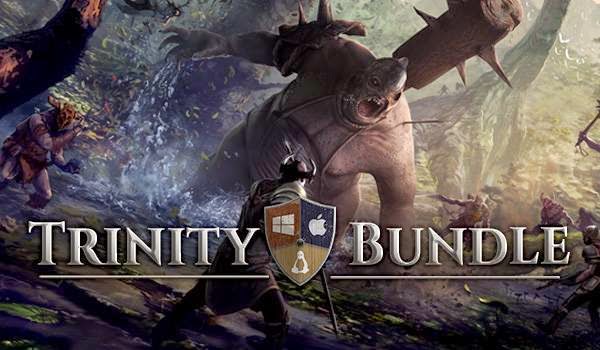
Say Hello To Trinity Bundle, AKA More Steam Games

10 epic Steam games for Linux worth more than 120 USD for just $2.49, Bundle Star brings to you perhaps one of the most exciting collection of Linux games this year at throw-away prices. Grab your copy before the time runs out. 
game bundle linux

Trinity Bundle brought to you by Bundle Stars
“All Steam, All Windows, All Mac, All Linux – Save $120 on 10 epic games in the Trinity Bundle, only $2.49!” Official list of games include:

  • Pixel Boy and the Ever Expanding Dungeon (Action-RPG Shoot-em-up)
  • STRONGHOLD 3 GOLD (simulation, Strategy)
  • IO (an abstract physics platformer)
  • REVENGE OF THE TITANS (real-time Strategy and Tower Defense)
  • ERADICATOR (arcade-style action shooter)
  • TERRIAN SAGA: KR-17 (side-scrolling action puzzle-platformer)
  • SENTINEL (tower-defense, strategy)
  • LEGENDS OF AETHEREUS (online action-roleplaying game)
  • SHINY THE FIREFLY (platform adventure)
Source : http://www.techdrivein.com/2015/02/say-hello-to-trinity-bundle-10-epic-linux-games.html